Help with installing a VPN online
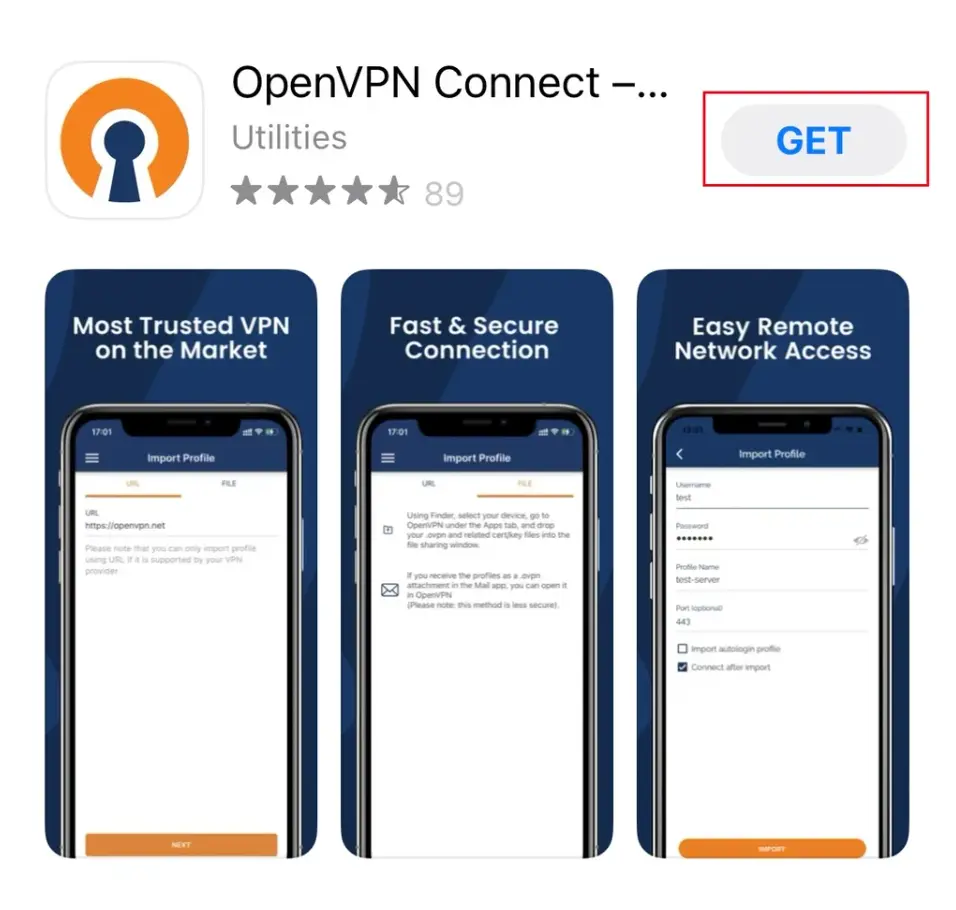
1Download and install the OpenVPN app from the Apple App Store
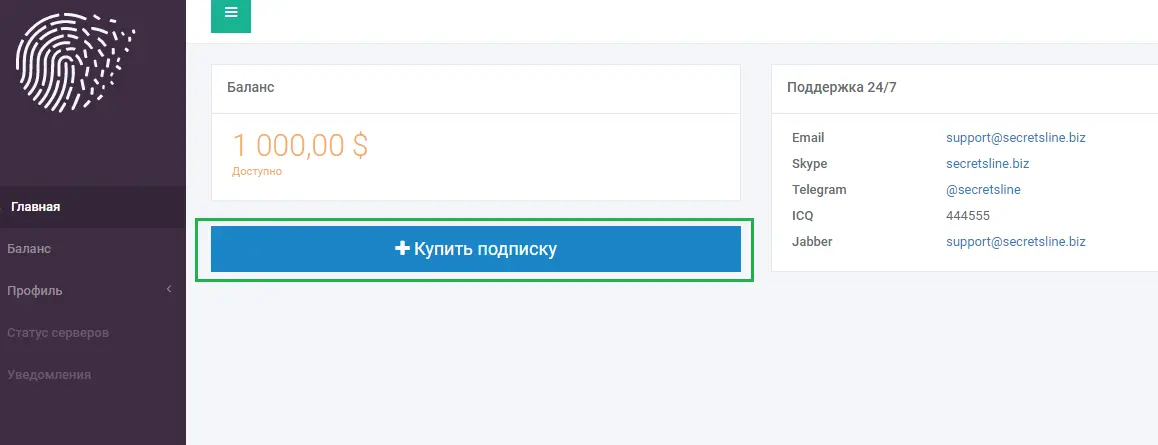
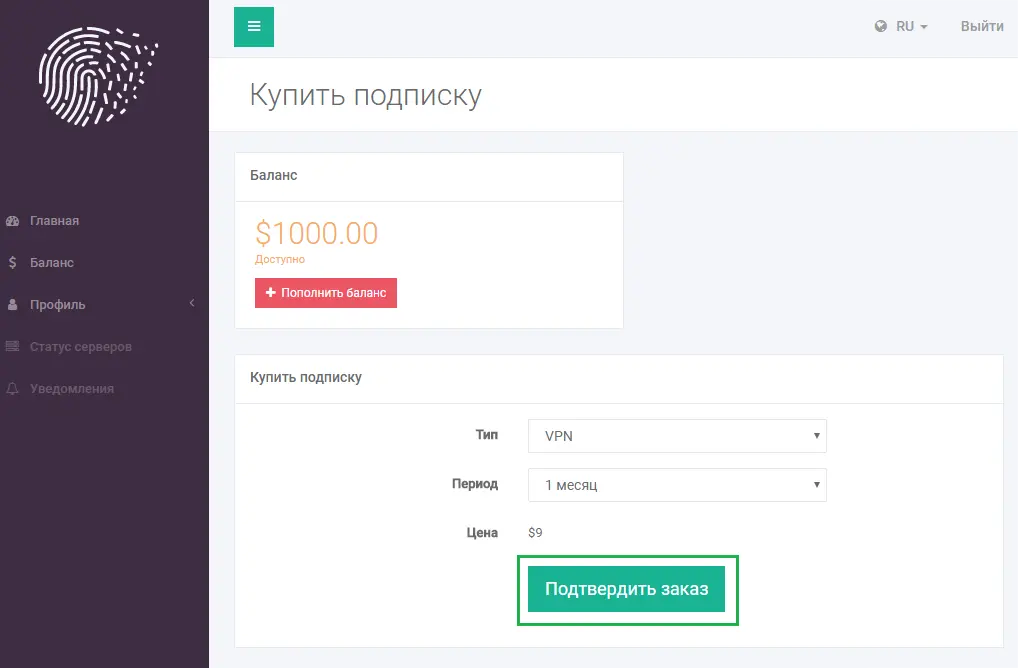
2Go to your Personal Account. If you don't have any subscriptions, add them.
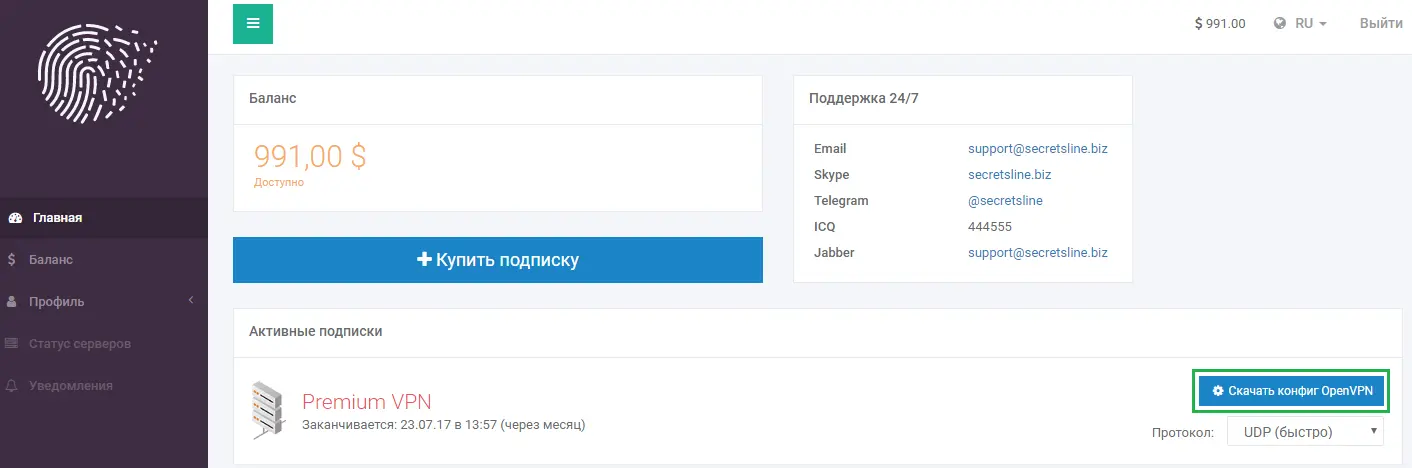
3Download the subscription configuration file.
4Open the *.ovpn configuration file on your iOS device by tapping «Open in OpenVPN».
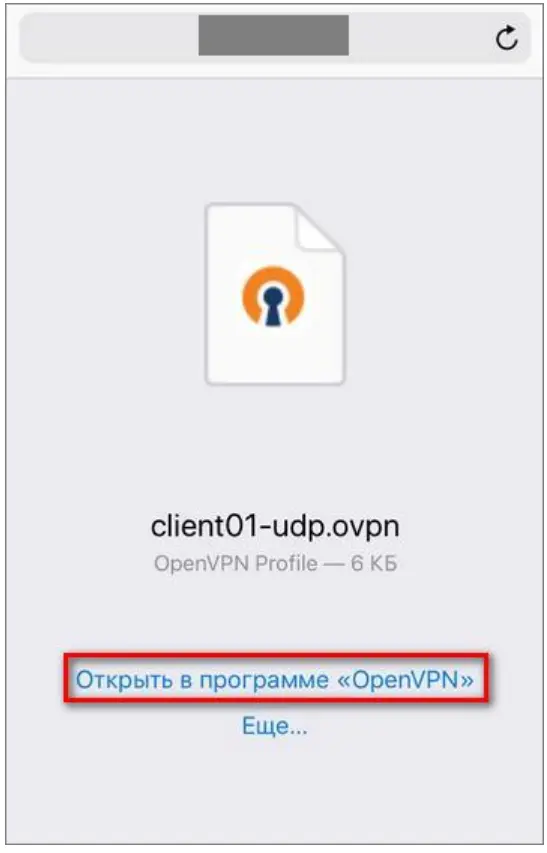
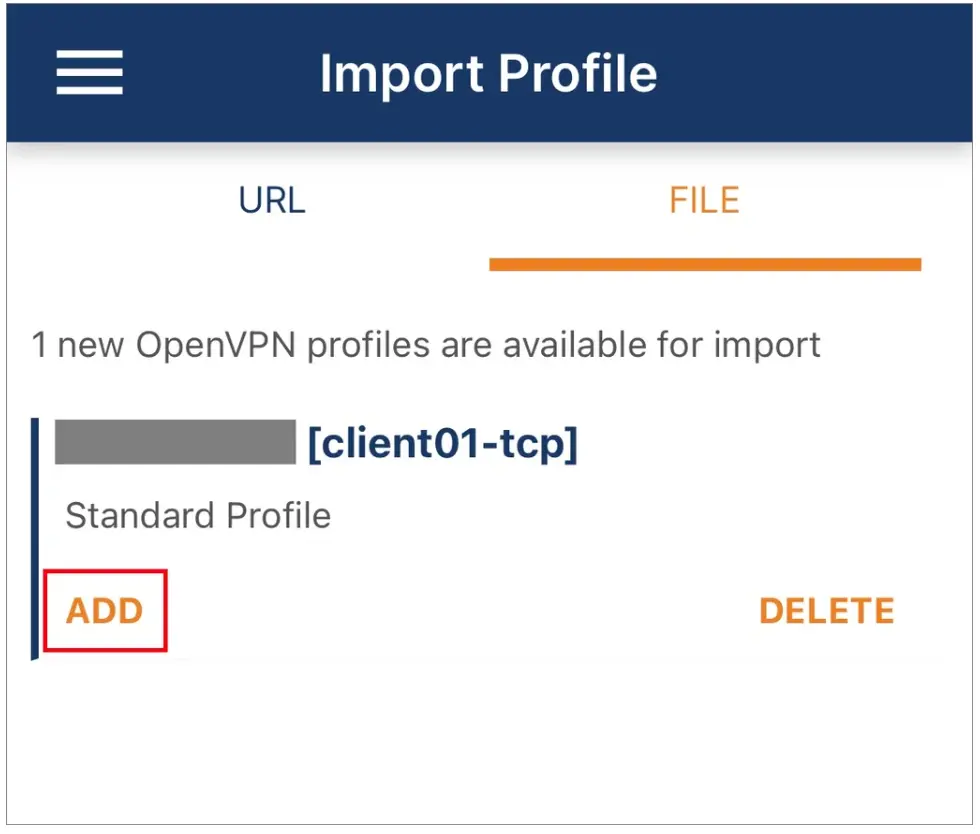
5To import the downloaded OpenVPN configuration, tap the «ADD» button.
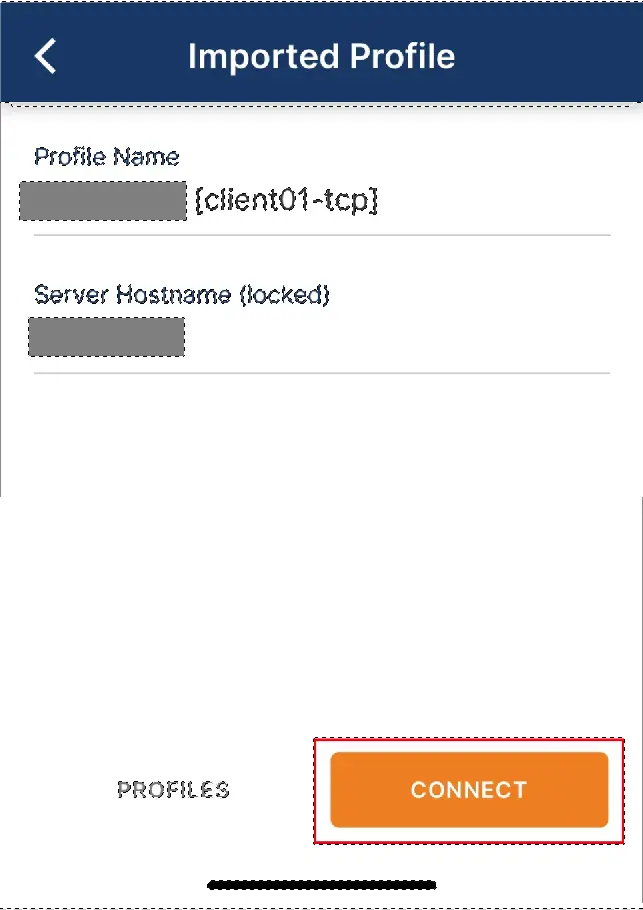
6To add the imported configuration to the app and enable OpenVPN, tap «CONNECT».
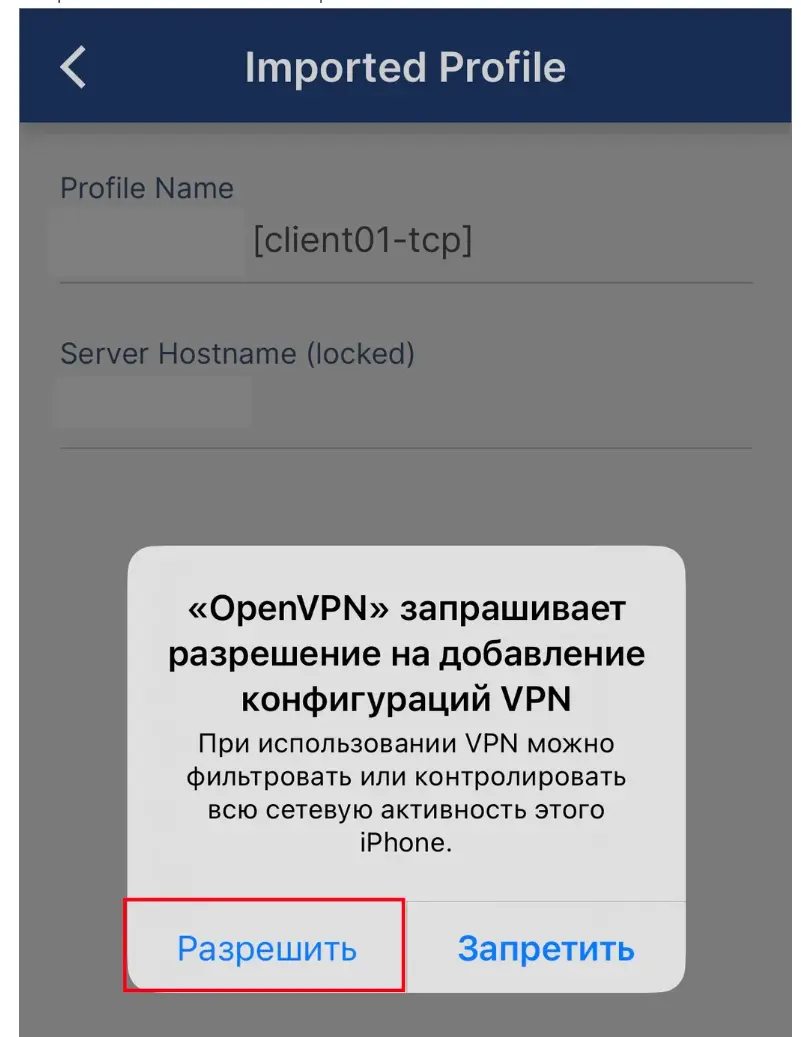
7When adding a new configuration, a prompt may appear requesting permission to add VPN configurations. Allow the addition of the OpenVPN configuration by tapping «Allow» in the pop-up message.
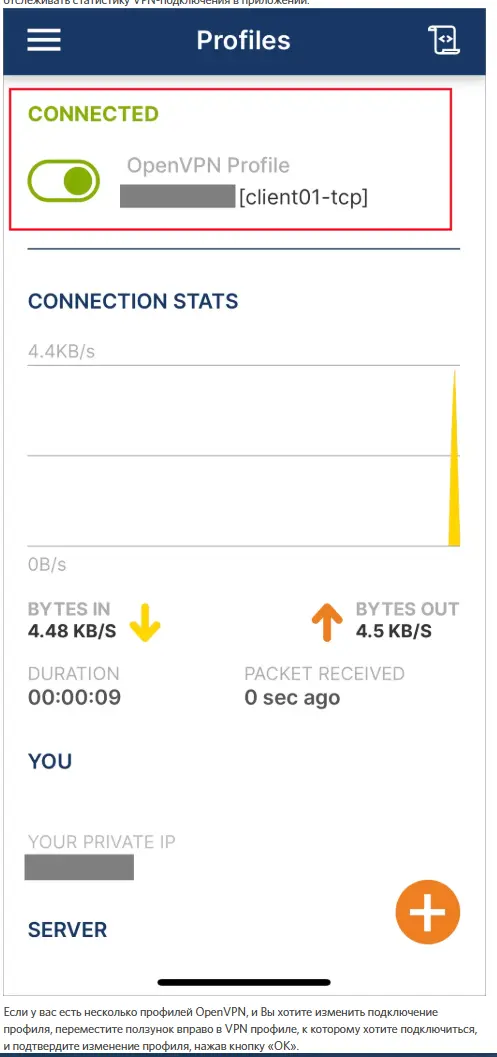
8Upon successful connection, the «CONNECTED» status will appear, and you will be able to track the VPN connection statistics in the app.
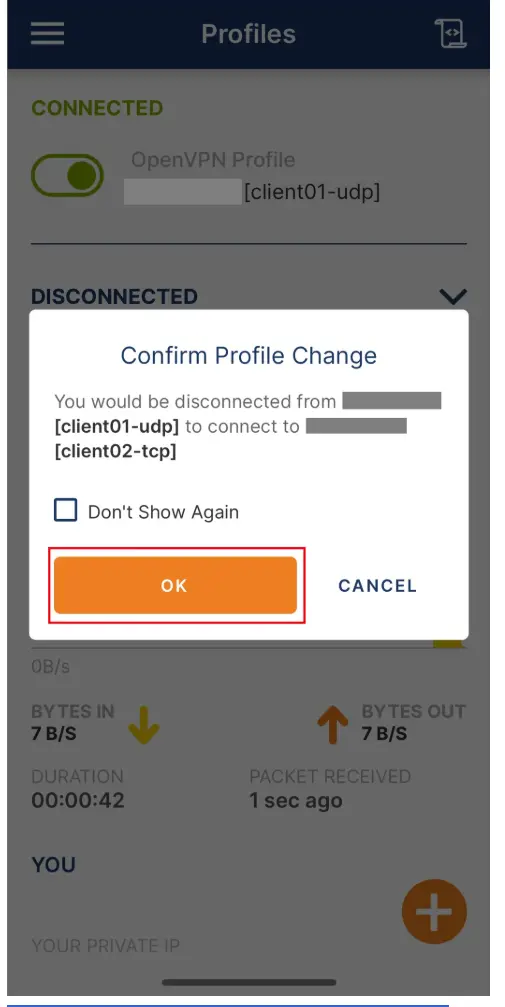
9If you have multiple OpenVPN profiles and want to switch the active profile, slide the toggle to the right on the VPN profile you want to connect to, and confirm the profile change by tapping the «OK» button.
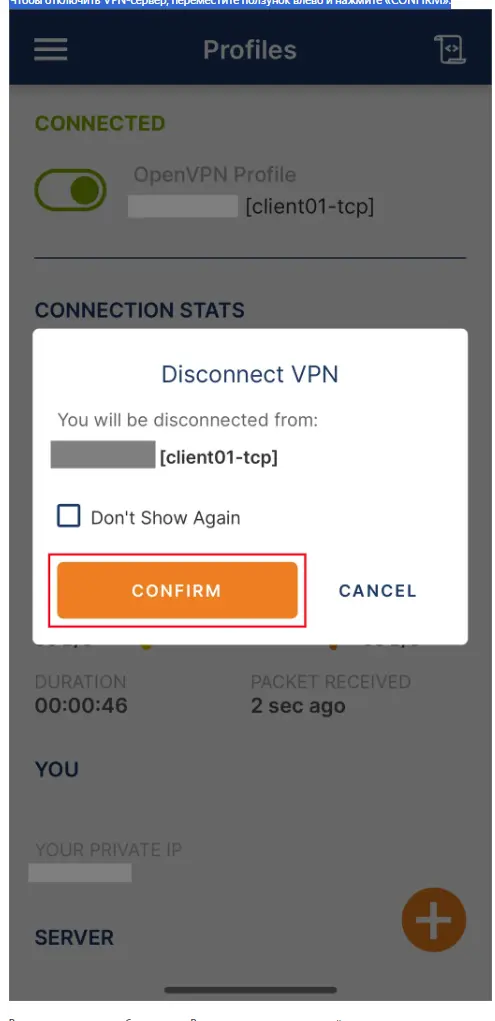
10To disconnect from the VPN server, slide the toggle to the left and tap «CONFIRM».
 English
 Русский