Help with installing a VPN online
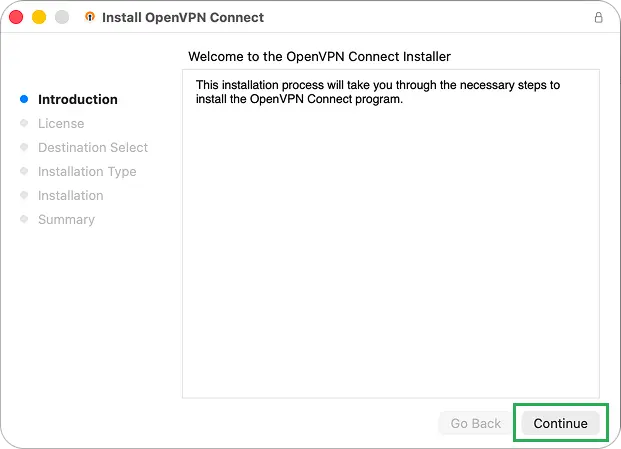
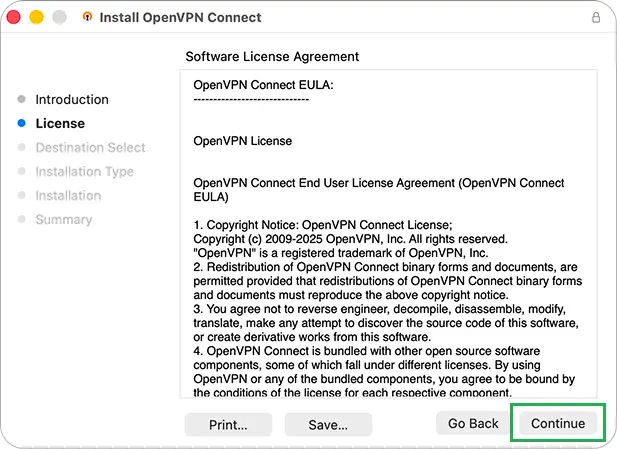
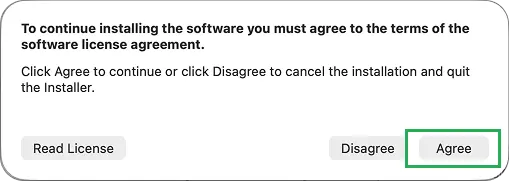
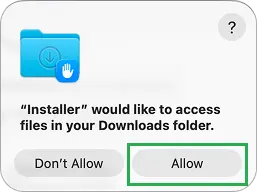
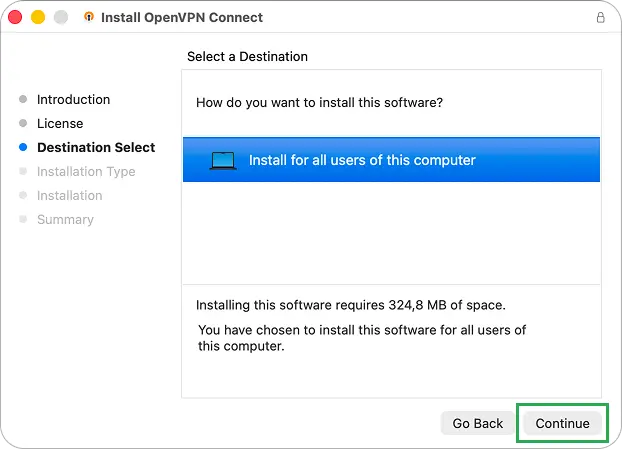
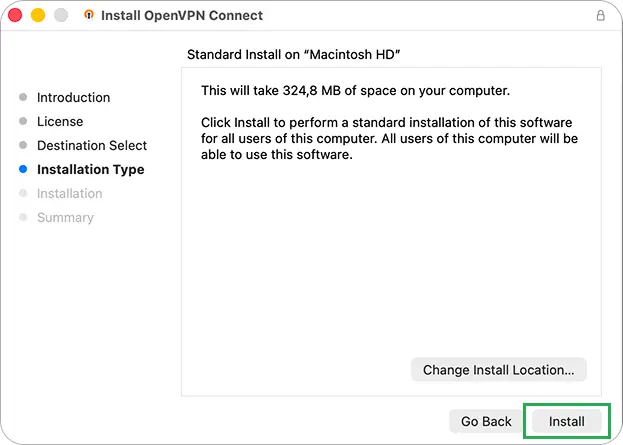
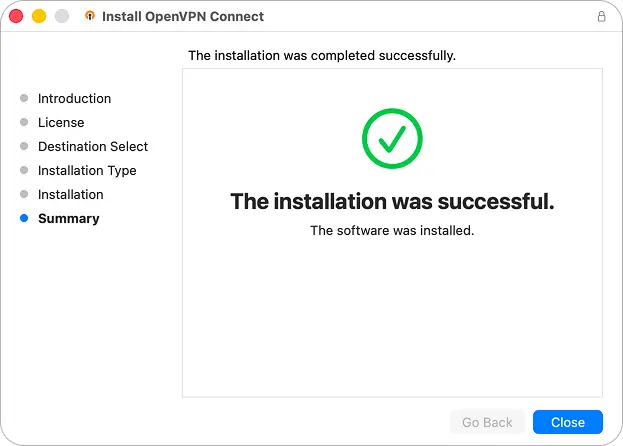
1Download the OpenVPN application for macOS and launch it. Do not change anything during the installation process.
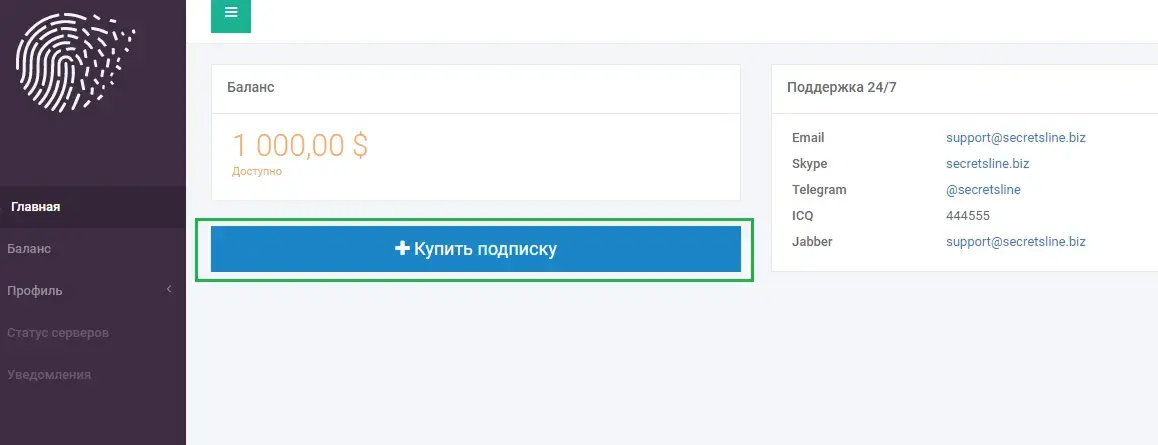
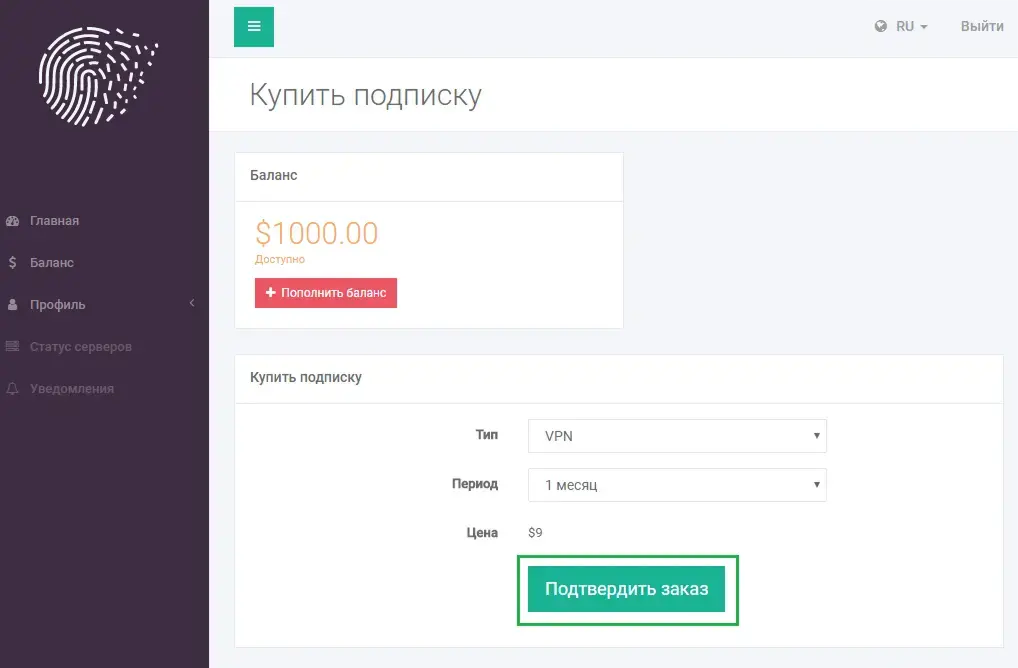
2Log in to the Secrets Line Dashboard. If you do not have a subscription, get one.
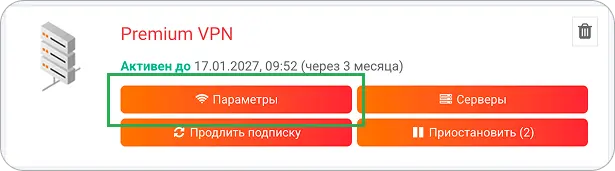
3Click the "Settings" button to access the plan details.
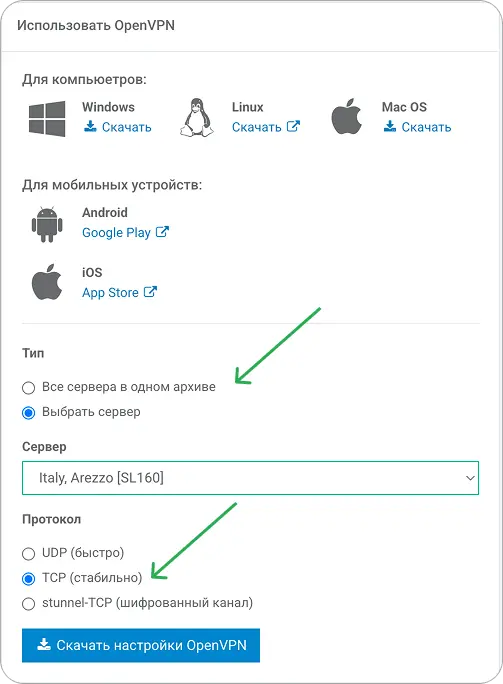
4Select the desired download options. You can download all servers in a single file or only the specific countries you are interested in. We recommend selecting "TCP" in the "Protocol" section.
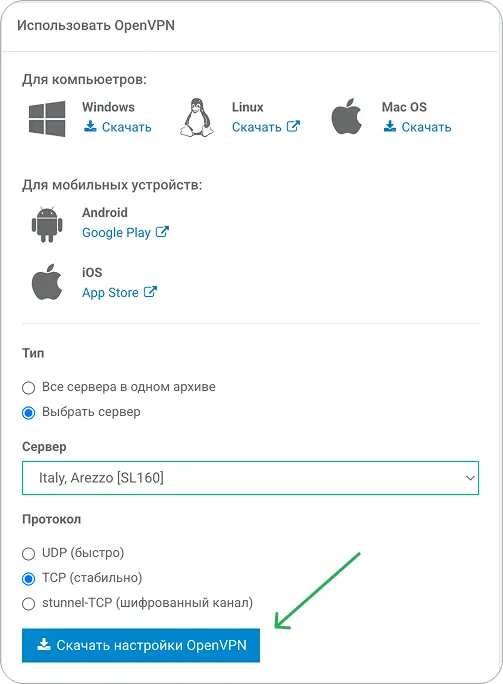
5Download the settings by clicking the "Download OpenVPN settings" button (config).
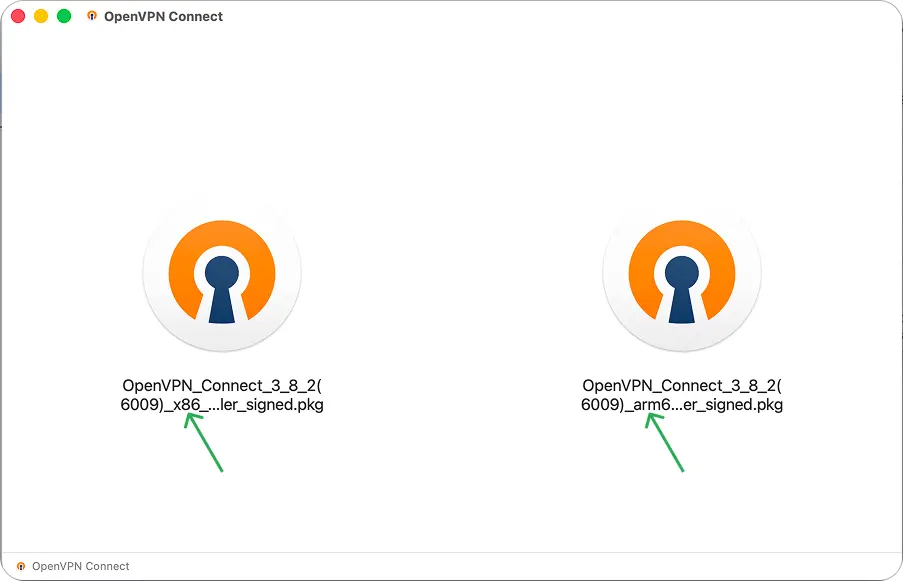
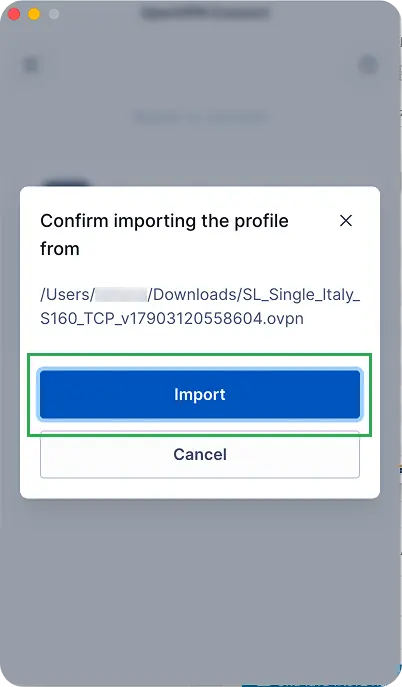
6Double-click the downloaded config file. If two installation programs open, choose the arm format for Apple Silicon and x86 for Intel. In the application, click the "Import" button.
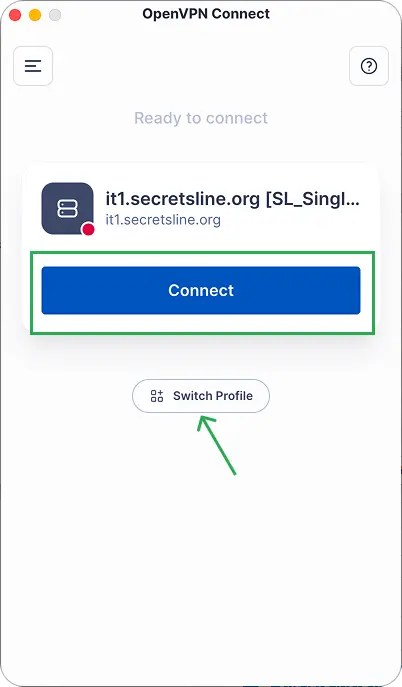
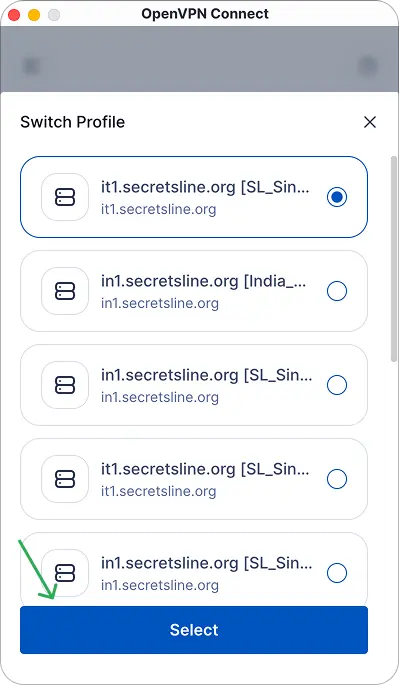
7Activate the VPN using the "Connect" button. Add all desired configs to the application. You can change the location via the "Switch Profile" button.
 English
 Русский