Help with installing a VPN online
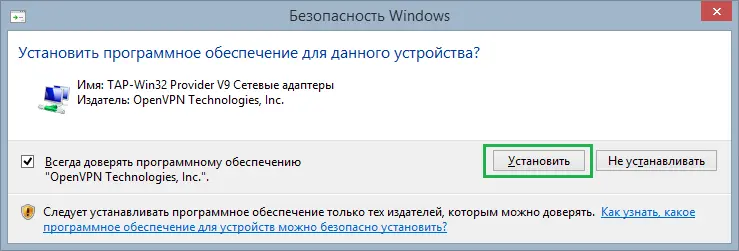
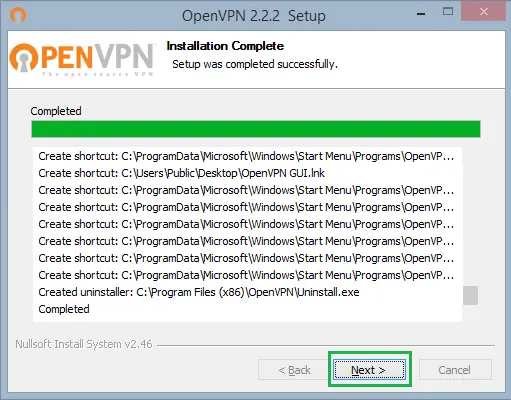
1Download the OpenVPN program Windows and install it. Do not change anything during the installation process.
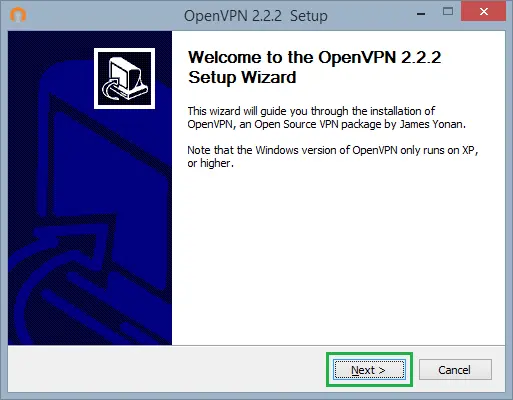
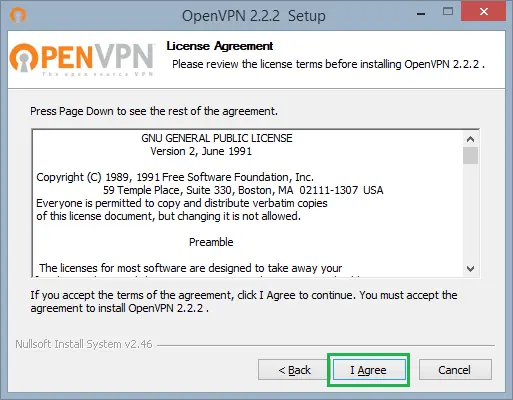
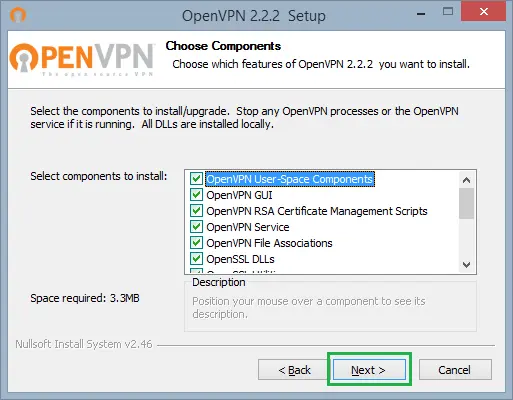
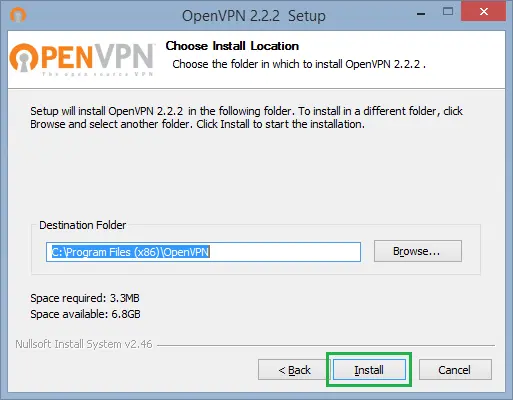
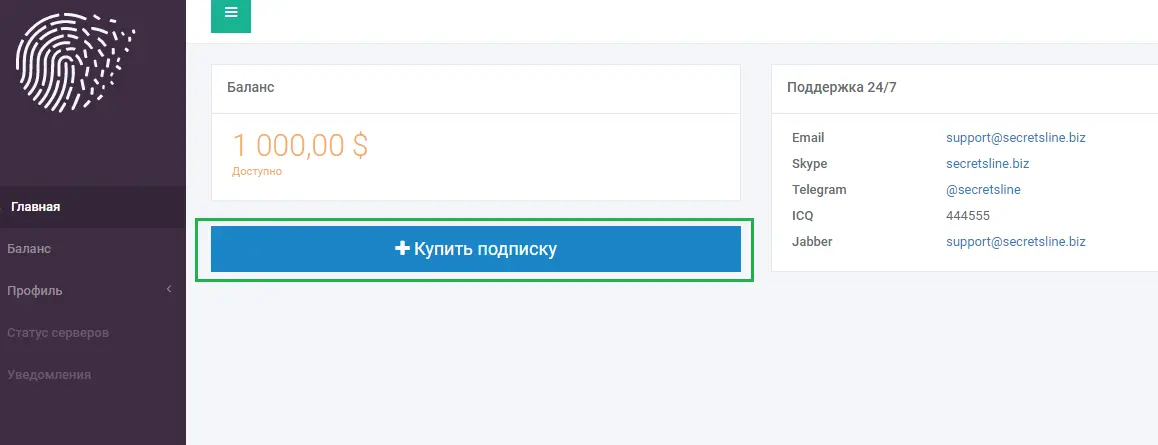
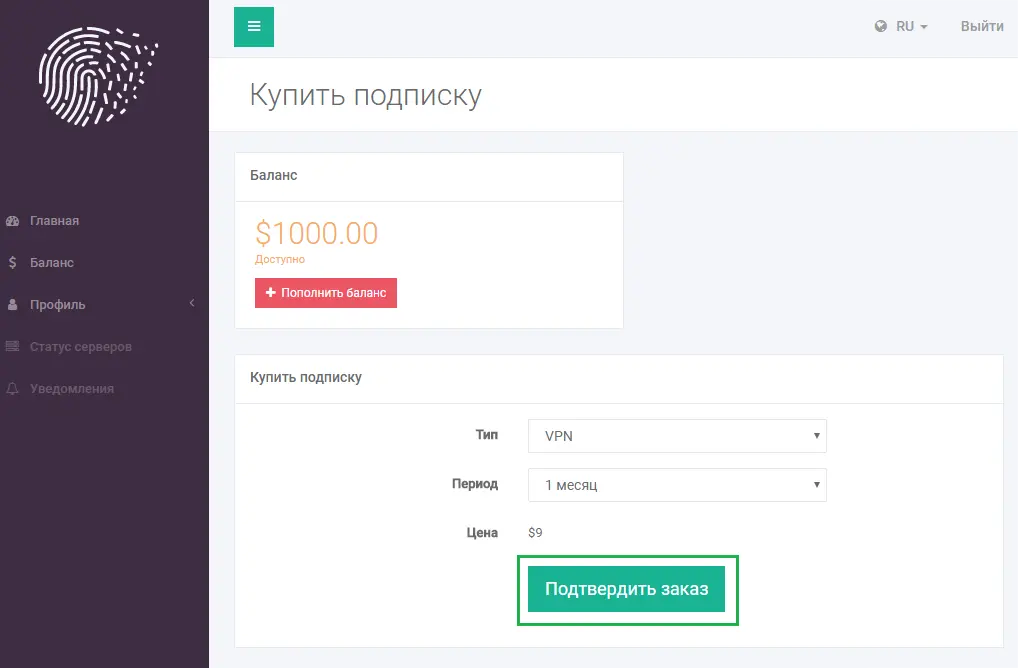
2Go to your Personal Account. If you don't have any subscriptions, add them.
3Download the subscription configuration file.
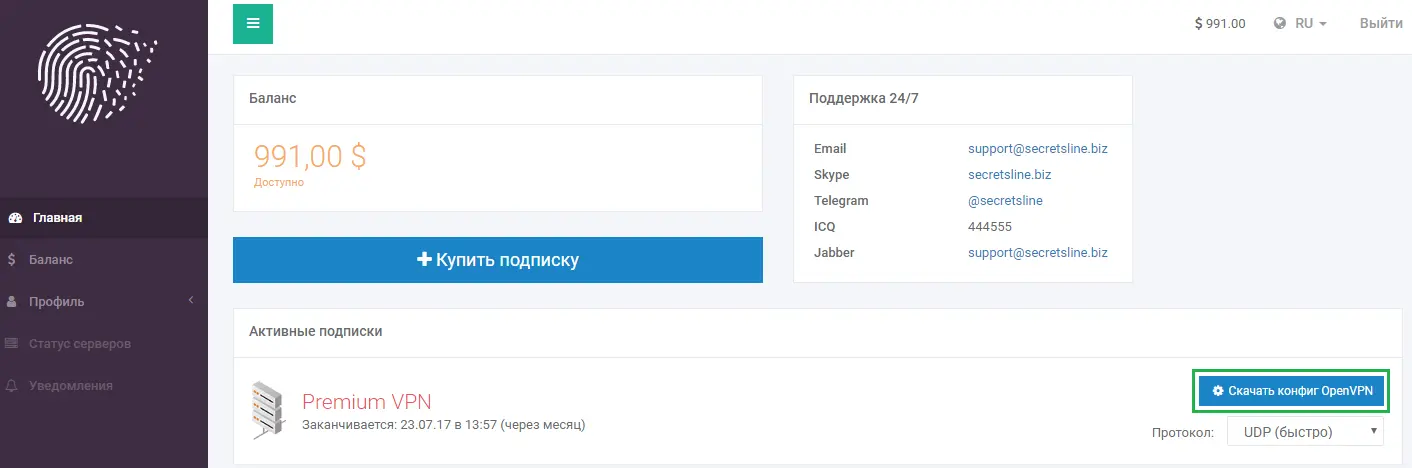
4In the dialog that appears, click the Open button.
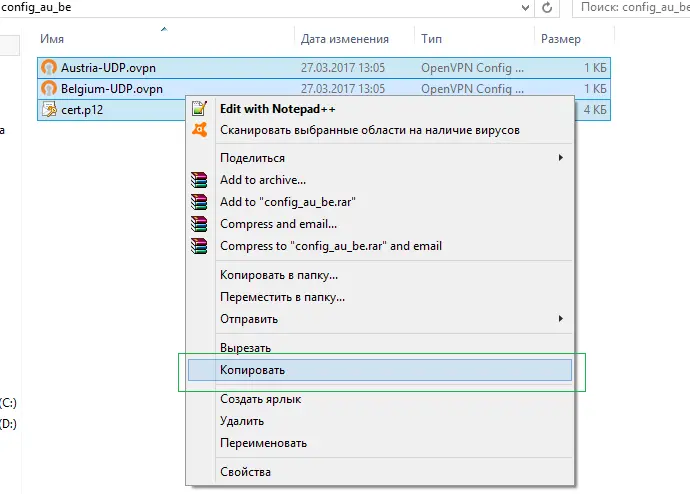
5Select ALL files in the archive, open the context menu, and choose Copy.
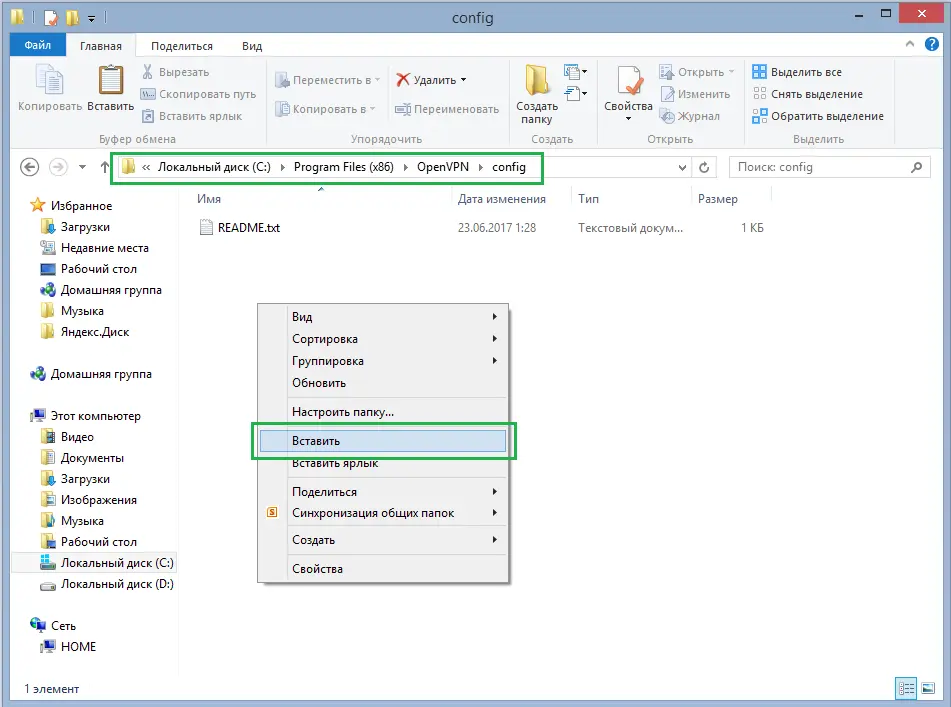
6Navigate to the directory where the OpenVPN configuration files are stored — C:\Program Files\OpenVPN\config — open the context menu, and choose Paste.
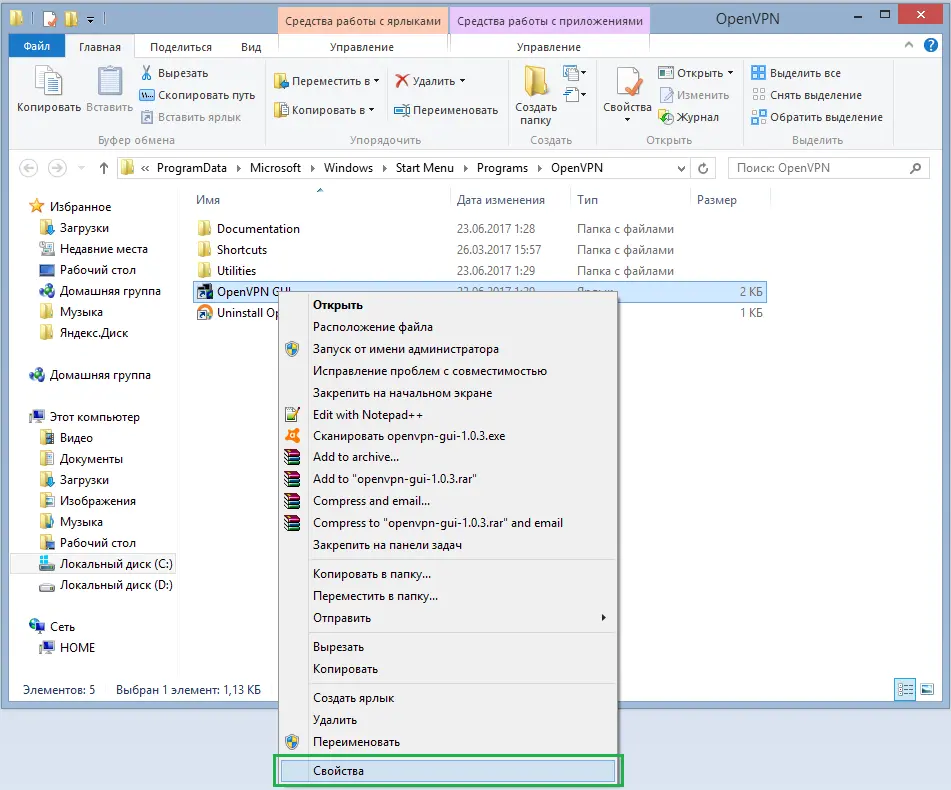
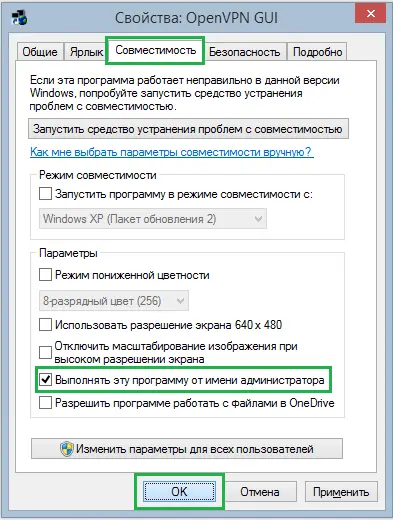
7For OpenVPN to work properly, it must be run with administrator privileges. In Windows, you need to change the compatibility properties for this. To do so, in the Start menu, right-click the OpenVPN-GUI shortcut and select Properties.
8Go to the Compatibility tab, check the box "Run this program as an administrator", and click OK.
9Launch OpenVPN-GUI.
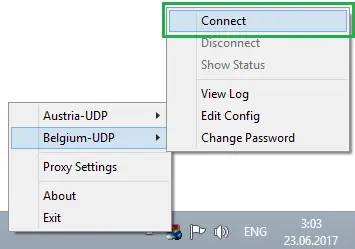
10Open the program's menu in the system tray. Select the Connect item.
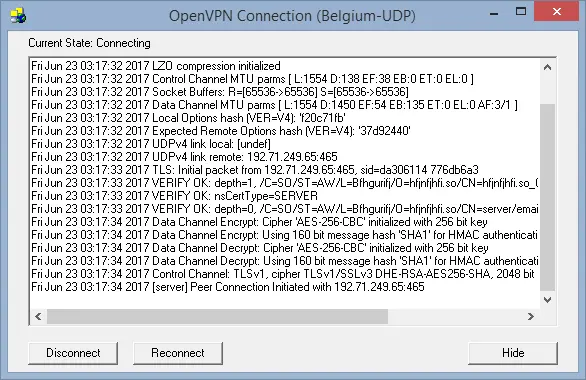
11A window containing the connection log will open.
12After a successful connection, a notification will pop up in the tray.
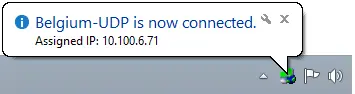
13Verify that your IP address has changed.
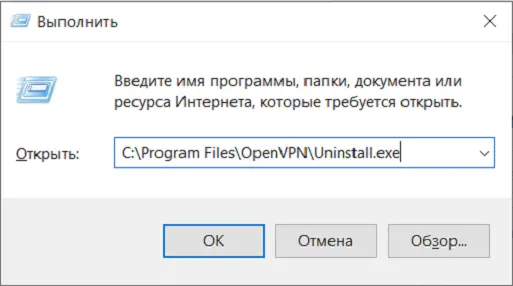
14To uninstall the program, press Win + R and enter the following in the window that appears:
"C:\Program Files\OpenVPN\Uninstall.exe" (the default installation location of the OpenVPN program)
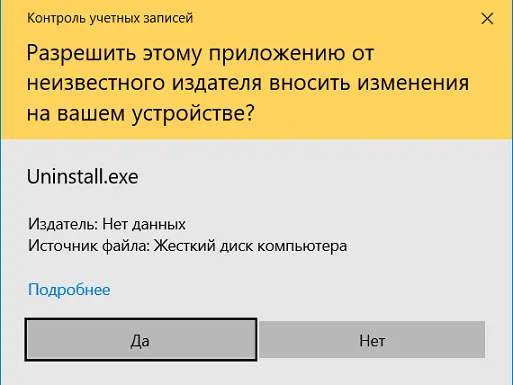
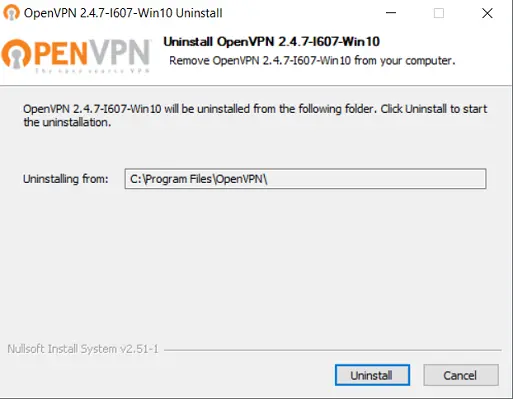
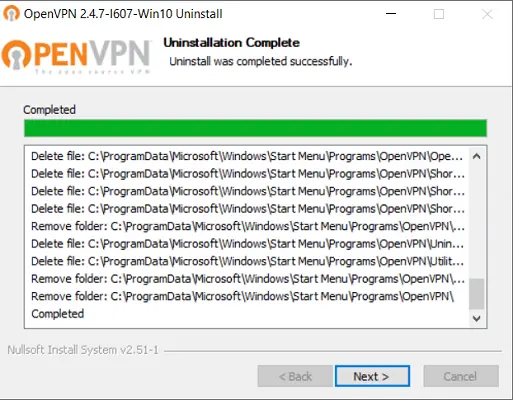
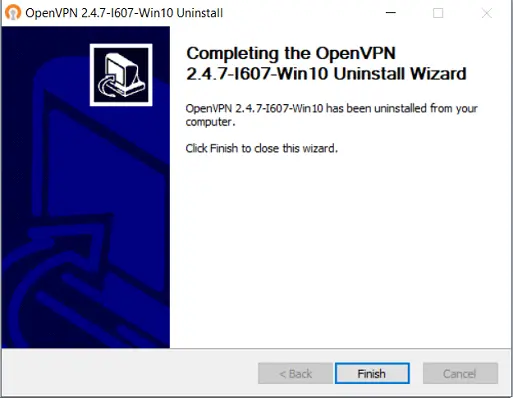
then click "Ok", then "Yes", then "Uninstall", then "Next", and then "Finish". The program has been uninstalled.
 English
 Русский