Help with installing a VPN online
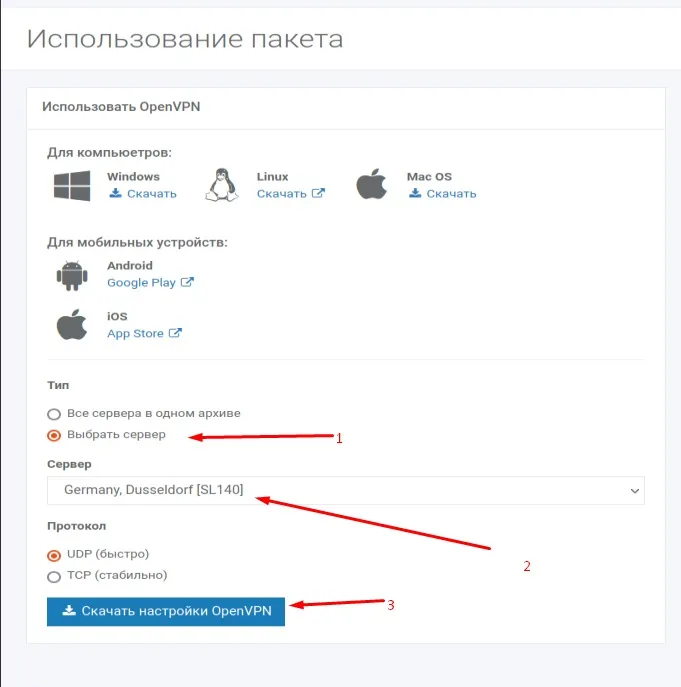
1Open your Personal Account and click "Options", download one config or all available configs, and save them in any convenient location.
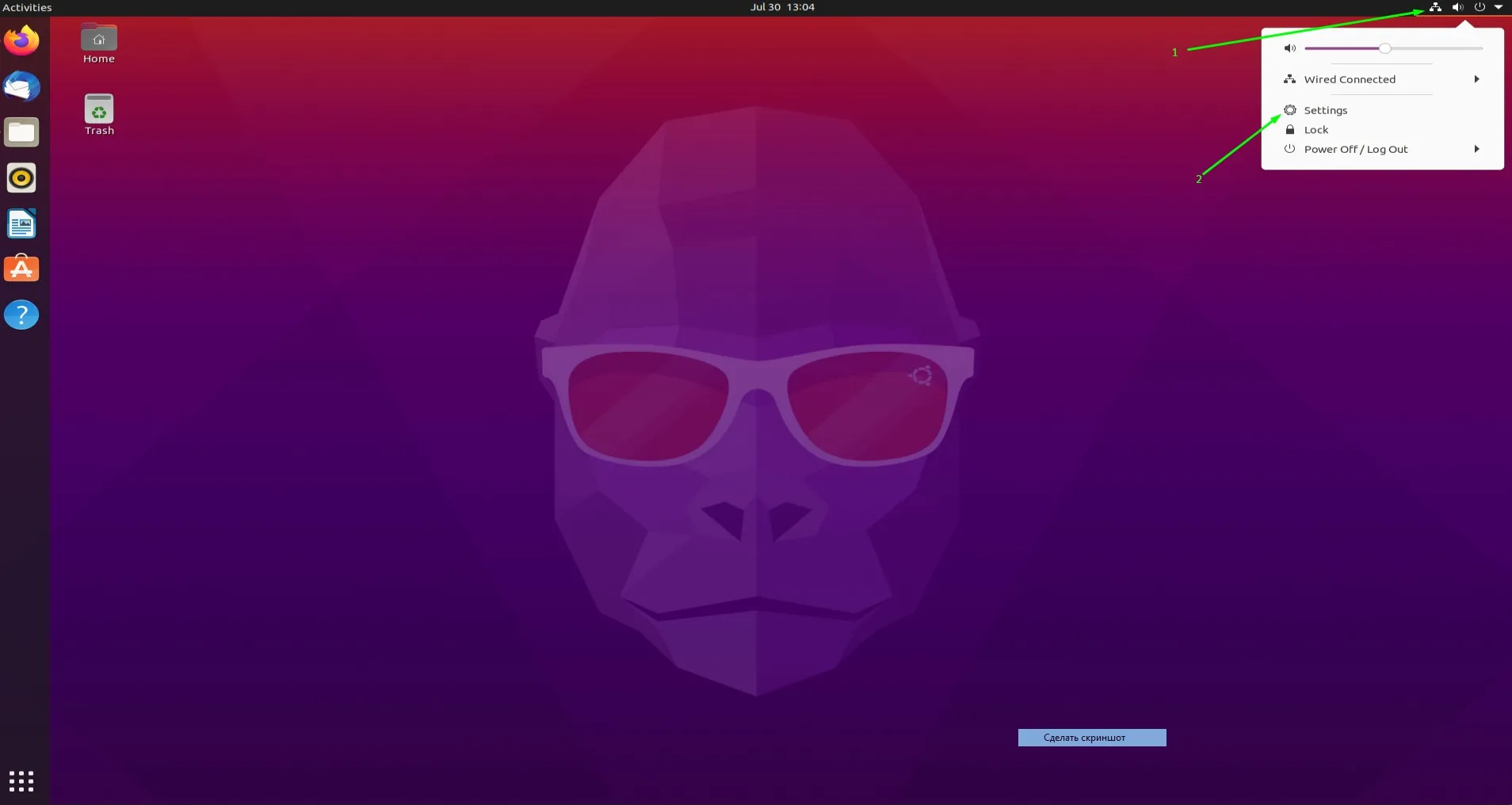
2In the Ubuntu operating system, open the network settings.
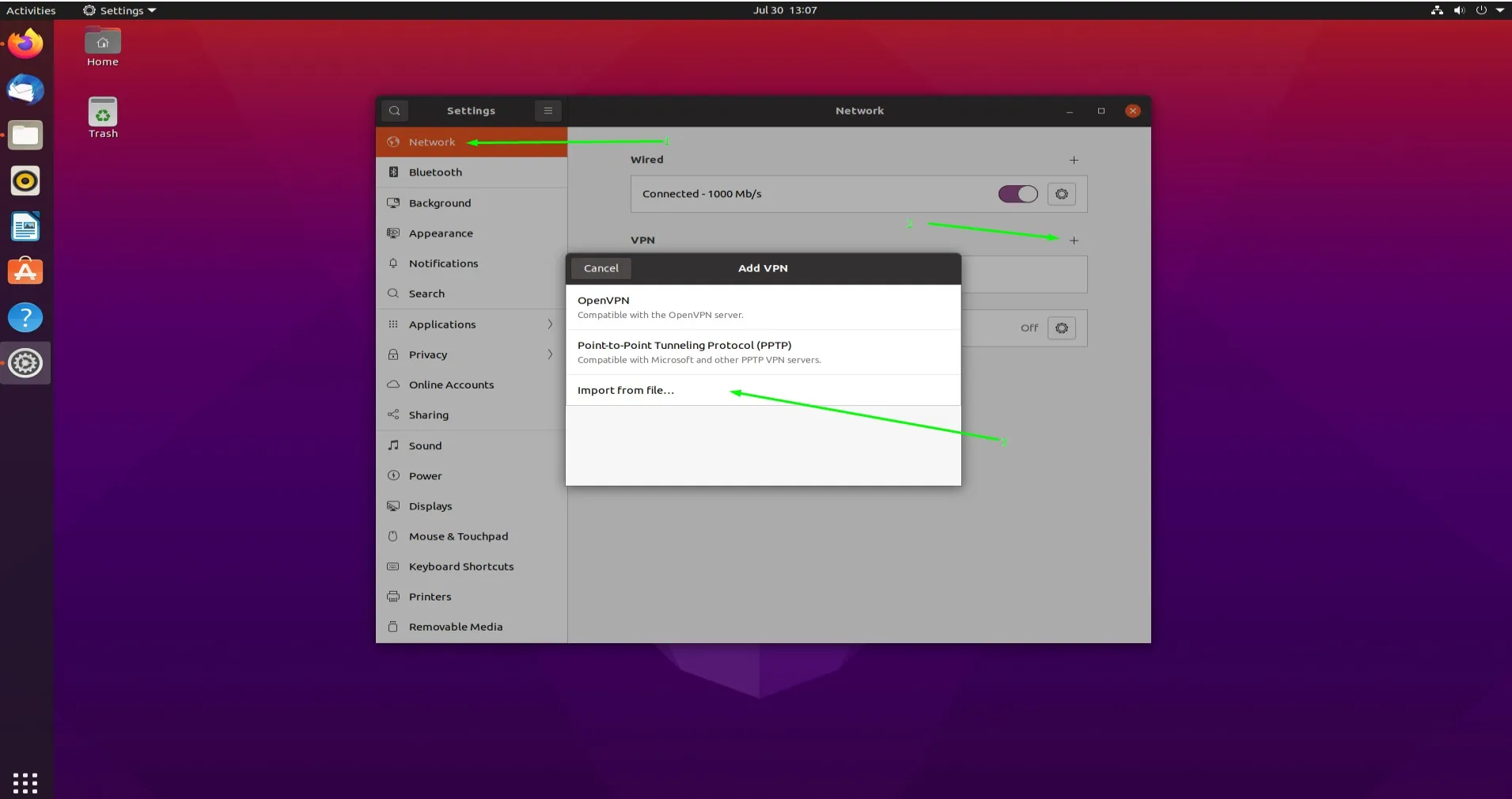
3Select the Network tab, click "+" in the VPN row, then import the config from a file.
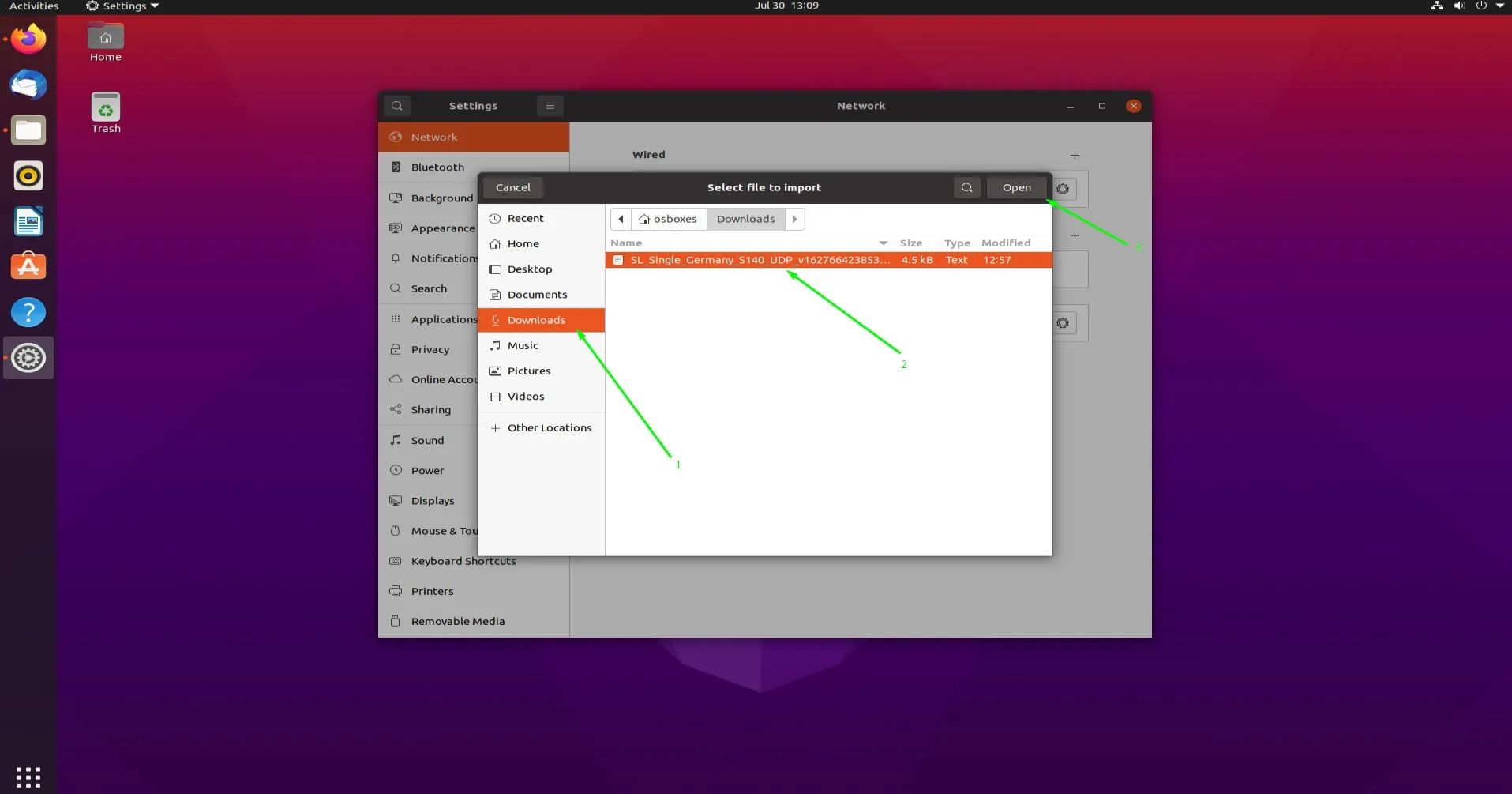
4Navigate to the folder where the config was saved, or to the folder with the extracted configs, select the one you need, and open it.
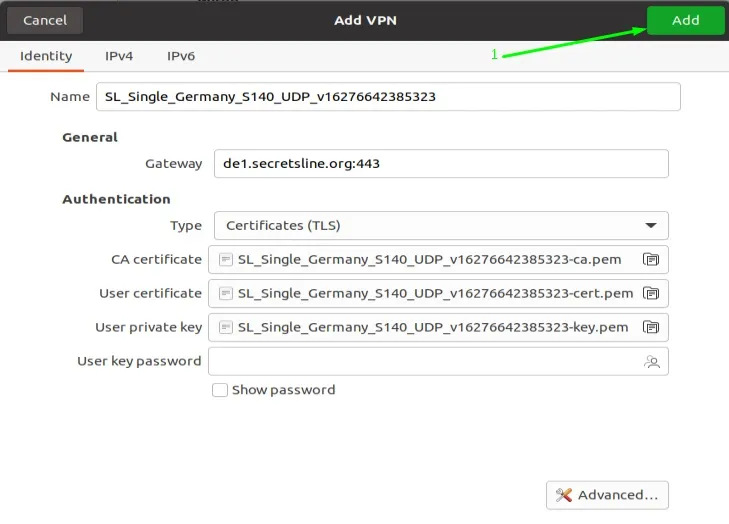
5Then click the "Add" button.
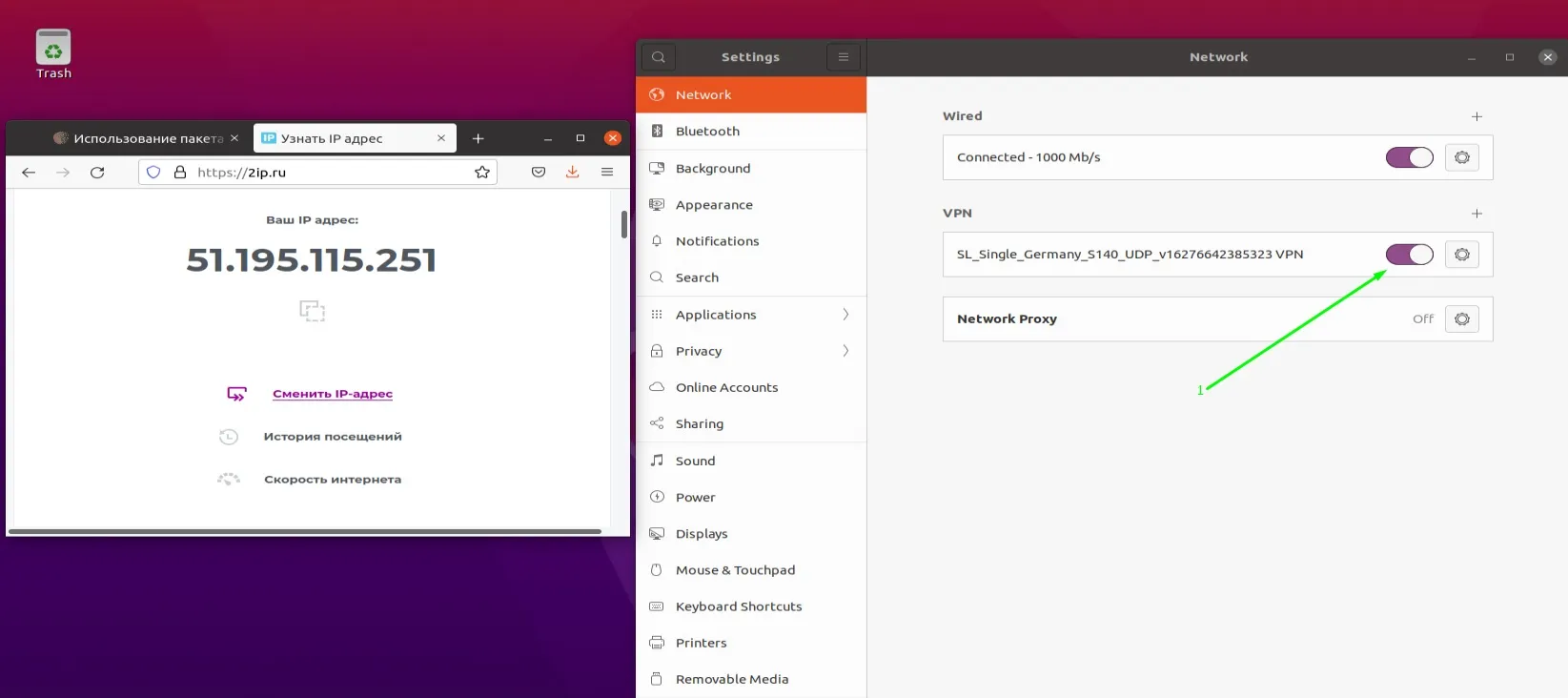
6Turn on the VPN, go to 2ip.ru, and you will see that the VPN has started successfully.
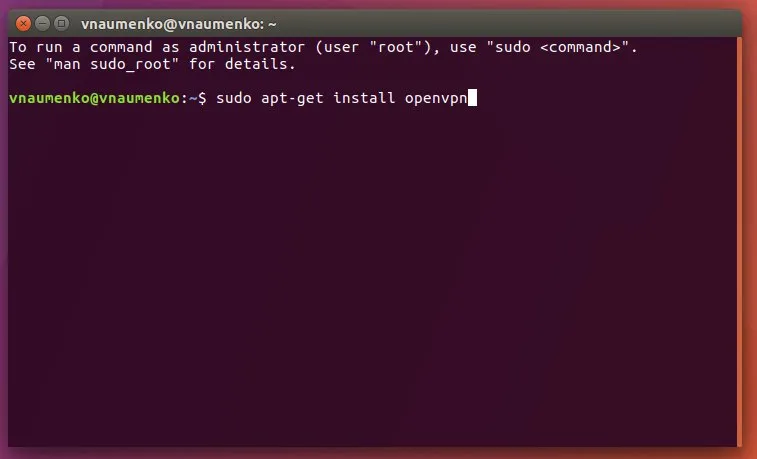
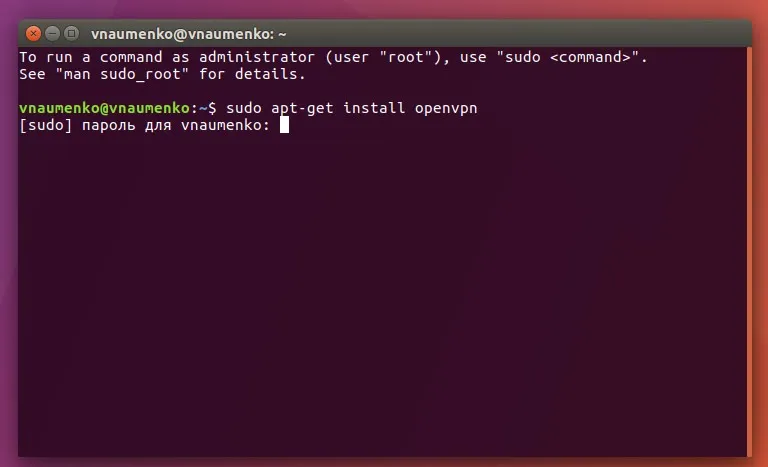
1Open the Terminal and enter the command sudo apt-get install openvpn. The Terminal will ask you to enter the administrator password to continue the installation.
2Open your Personal Account and click "Options", download one config or all available configs, and save them in any convenient location.
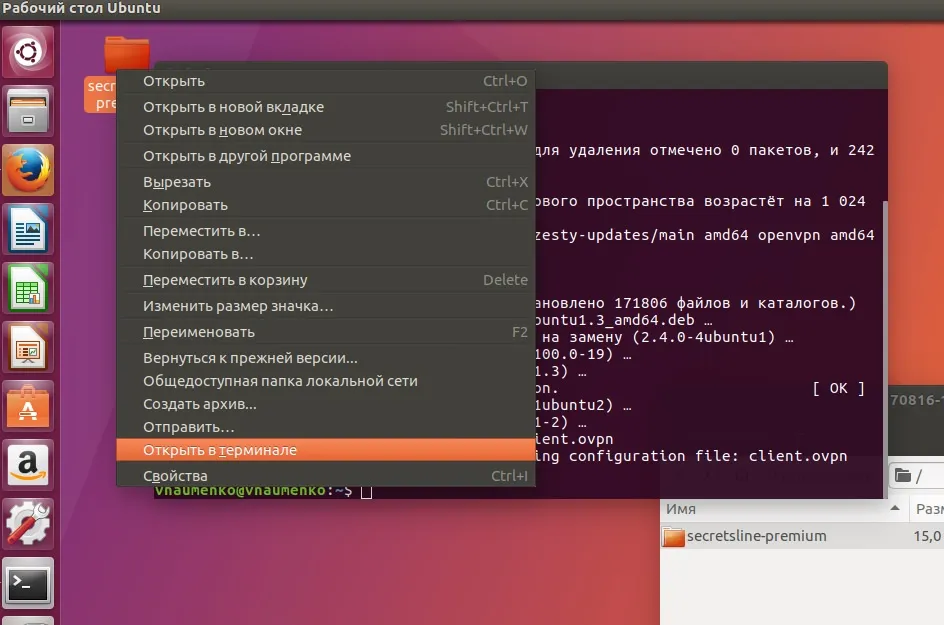
3Right-click the extracted folder and open it in the terminal.
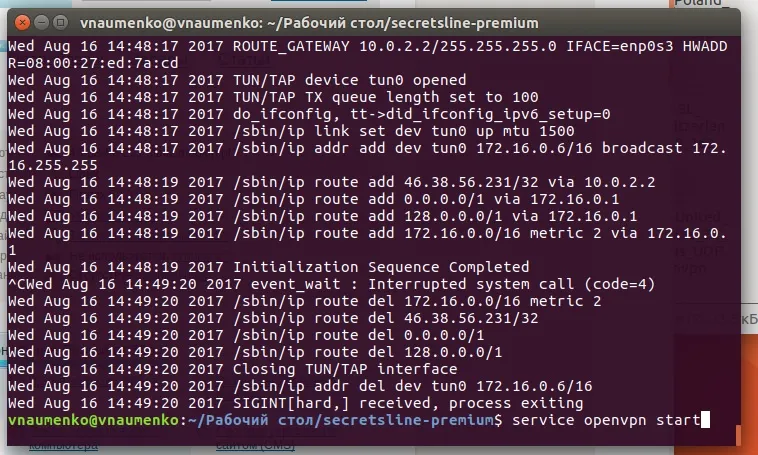
4Start the VPN service with the command service openvpn start.
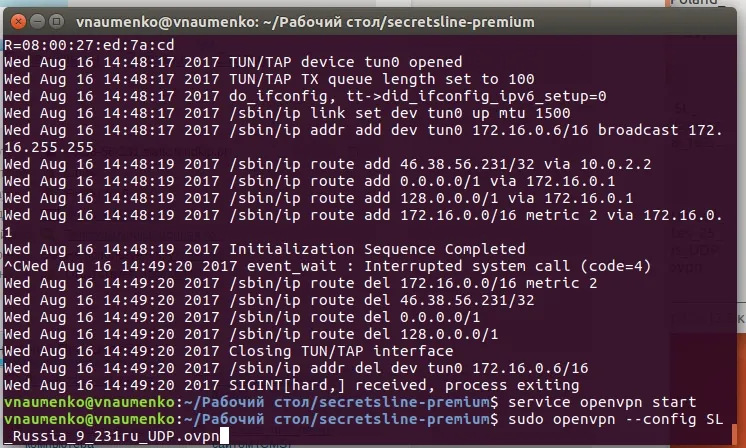
5After that, you can run the config with the command sudo openvpn --config
{config name}. The Terminal may ask for the administrator password.
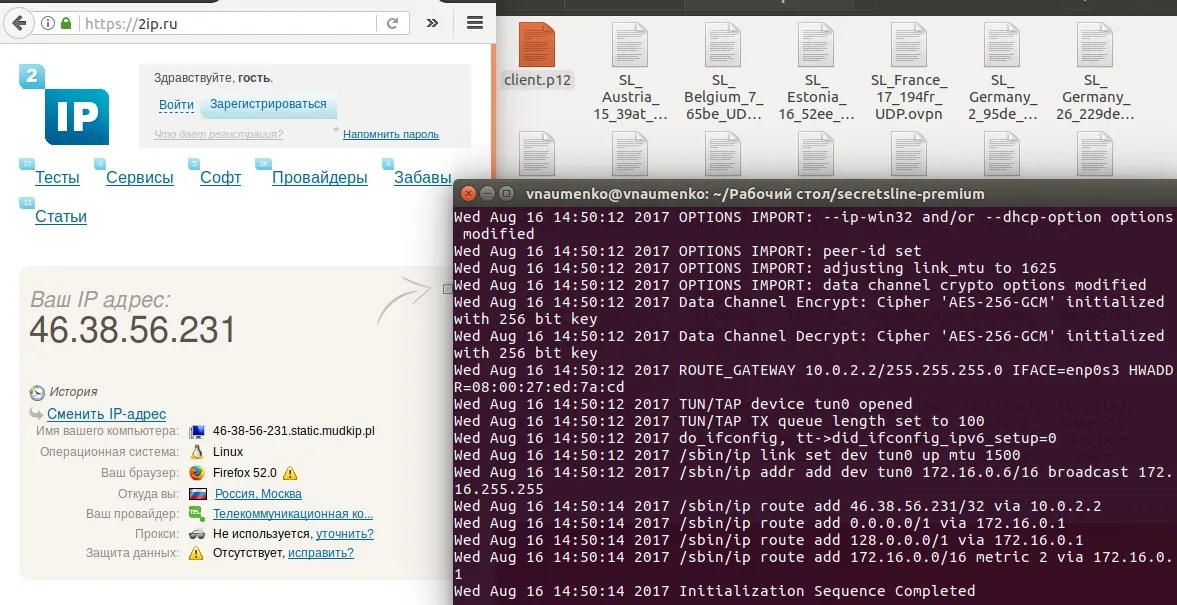
6 Go to 2ip.ru and you will see that the VPN has started successfully.
 English
 Русский